Create Your First Instance
After successfully logging in to the EXPLORE platform in the previous section, you are now ready to create your first instance.
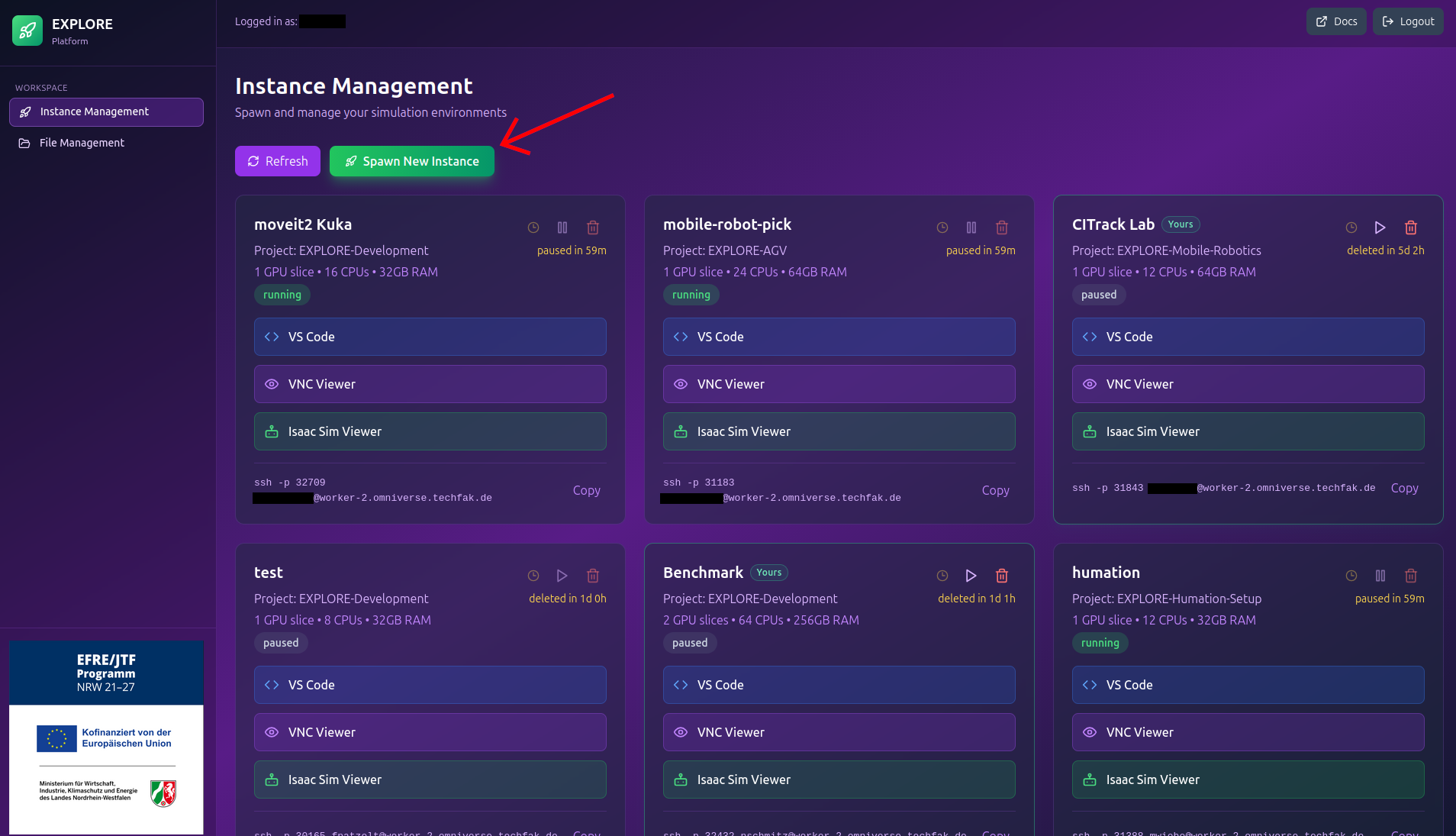
Instance Management
The Instance Management page allows you to manage your existing instances and create new ones.
To create a new instance, click on Spawn New Instance. A configuration dialog for the new instance will appear.
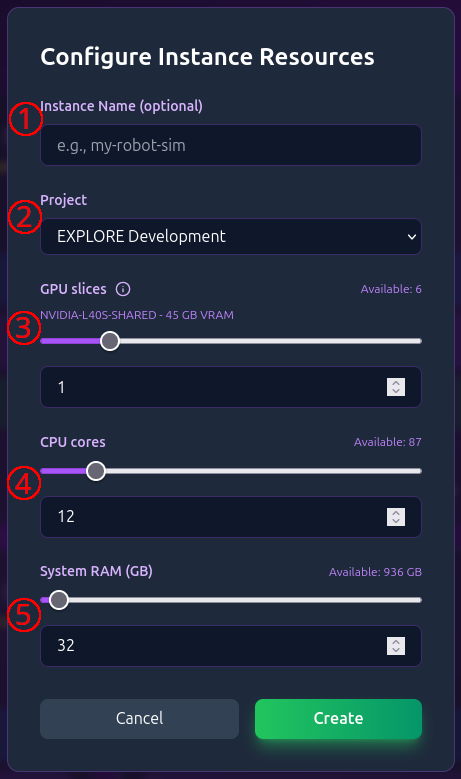
Configure the Instance
Please note that instance configuration is subject to a fair-use policy. Currently, it is not possible to modify the configuration of an instance after it has been created.
The configuration view allows you to define the basic settings for your new instance (see image):
- Instance name
- Project in which the instance will be used
- Number of GPU slices 1
- Number of CPU cores
- Amount of RAM in GB
The default values are sufficient for running simple simulation scenarios smoothly in Isaac Sim.
Once you are satisfied with your configuration, click Create.
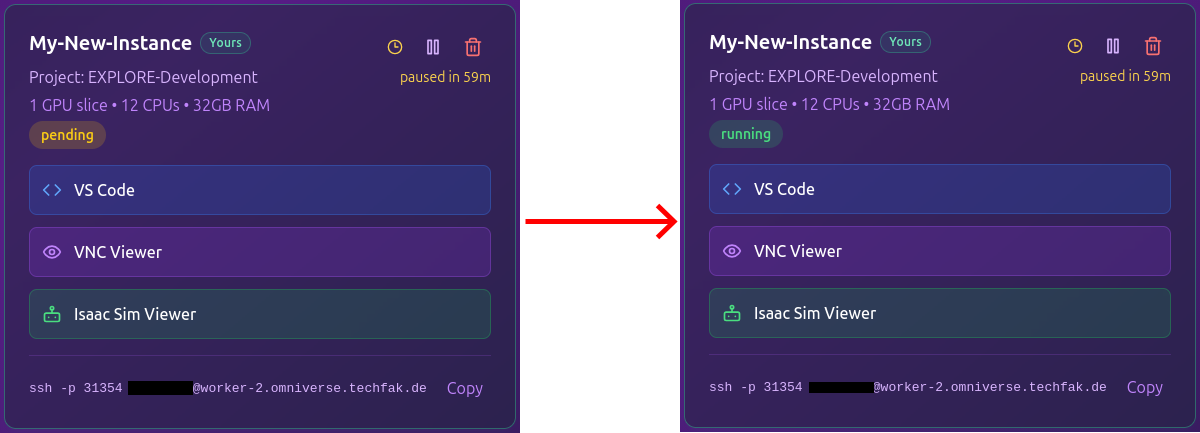
Wait for the Instance to Initialize
Your new instance will now appear as a tile in the overview page.
Wait until the instance status changes from pending to running.
-
To improve GPU utilization, time-slicing is used. One slice provides access to the full physical GPU resources, but only half of the available processing time. ↩
